
1. Click start.
2. Enter the control panel. It should be on the right of the start menu. The window shown below should open.

3. Click "Appearance and Personalization."

4. Next click "Show hidden files and folders" under Folder Options.
5. When the folder options box above appears, click on the bubble that says "Show hidden files, folders, and drives."
6. Uncheck the box underneath that reads "Hide extensions for known files types."
***If you need to edit the files in the Windows 7 operating system, also uncheck the "Hide protected operating system files." Be careful when editing these files. Again, doing so could potentially harm your computer.
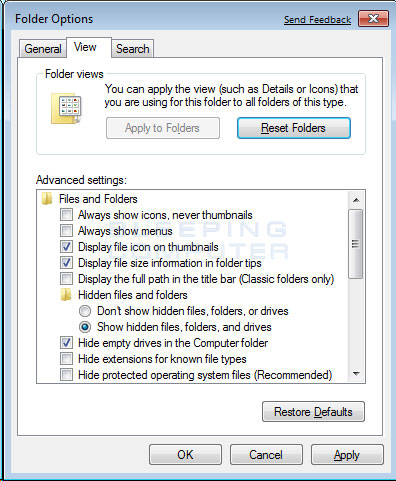
Your screen should now look the same as the box above.
8. Click Apply and OK, and you're finished. You will now be able to see all hidden files and folders on your PC.
*If you have any further problems or questions, leave a comment below and I"ll be sure to reply.

No comments:
Post a Comment